

Prerequisites
Before you begin, you’ll need:- A Discord account
- Manage Server permission on your target server
- A Discord bot application (we’ll create this below)
Create a Discord Application
Go to Discord Developer Portal
Visit discord.dev and sign in.
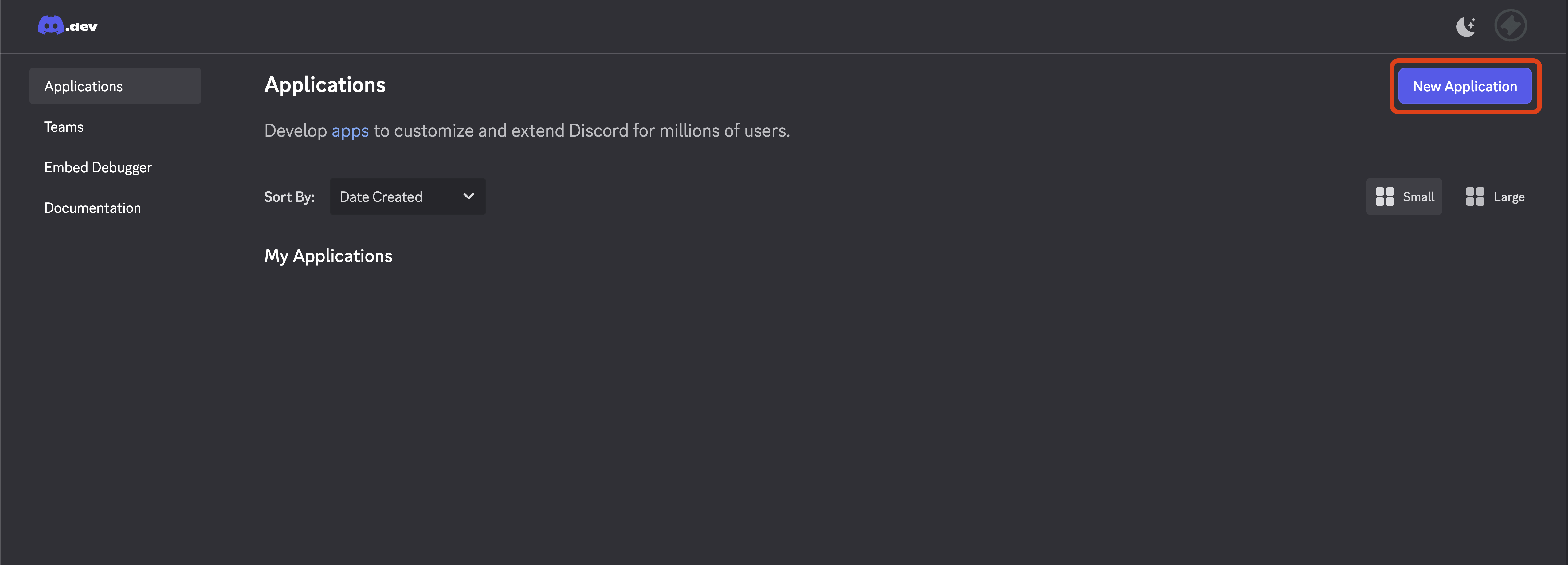
Disable Public Bot
In the Bot tab, find Public Bot and turn it OFF (toggle should be gray, not blue). This prevents others from adding your bot to their servers.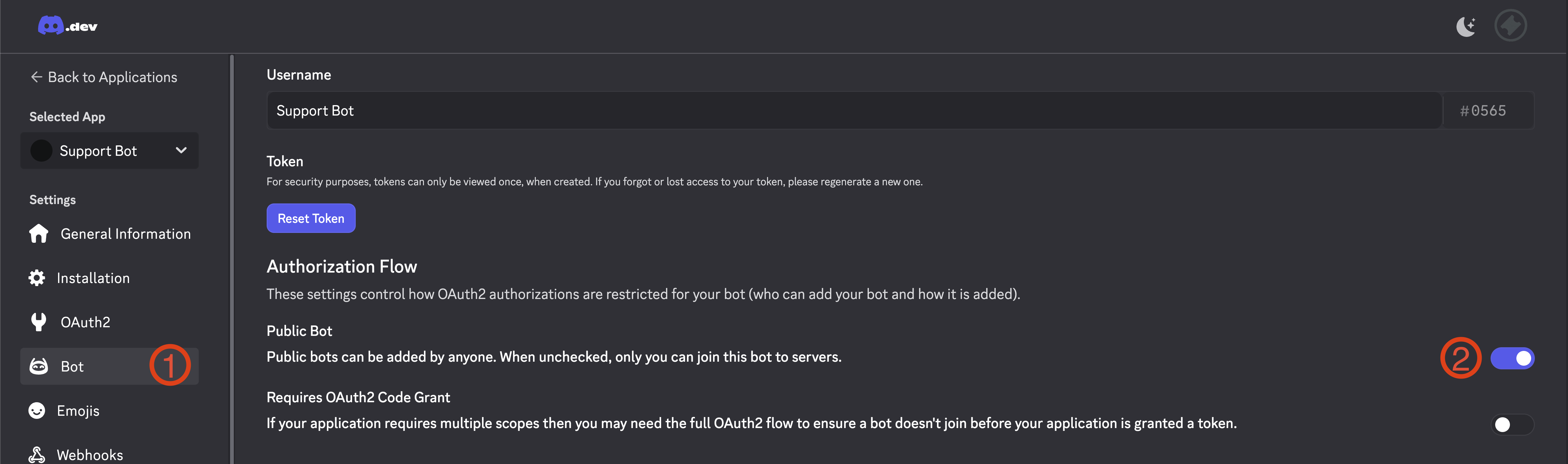
Privileged Gateway Intents
TicketCord automatically enables all required Privileged Gateway Intents when your bot connects.
Copy Bot Token
Click Reset Token and copy the token. You’ll need this for TicketCord.
If you reset your token after adding the bot to TicketCord, your bot will go offline. To fix this, go to your bot in the dashboard and click Update Credentials to enter the new token. The bot will automatically restart once updated.
Connect to TicketCord
Sign in to Dashboard
Go to ticketcord.net/dashboard and sign in with Discord.
Add Custom Bot
Click Add Bot and enter your credentials:
- Client ID - Found in your Discord application’s General Information
- Client Secret - Found in your Discord application’s OAuth2 settings
- Bot Token - The token you copied earlier
TicketCord will automatically configure your bot’s intents and settings during validation.
Validate & Create
Click Validate & Continue. TicketCord will verify your credentials and display your bot’s information. Review and click Create Bot to finish.
Required Permissions
TicketCord bots need these permissions to function properly:| Permission | Reason |
|---|---|
| Manage Channels | Create and delete ticket channels |
| Manage Roles | Manage ticket access permissions |
| Send Messages | Send ticket messages and responses |
| Embed Links | Send rich embed messages |
| Attach Files | Send transcripts and attachments |
| Read Message History | Read ticket conversations |
| Add Reactions | Add reactions to messages |
| Use External Emojis | Use custom emoji in embeds |
When you invite your bot through the TicketCord dashboard, all required permissions are automatically configured for you.
Next: Configuration
Configure your bot’s ticket system